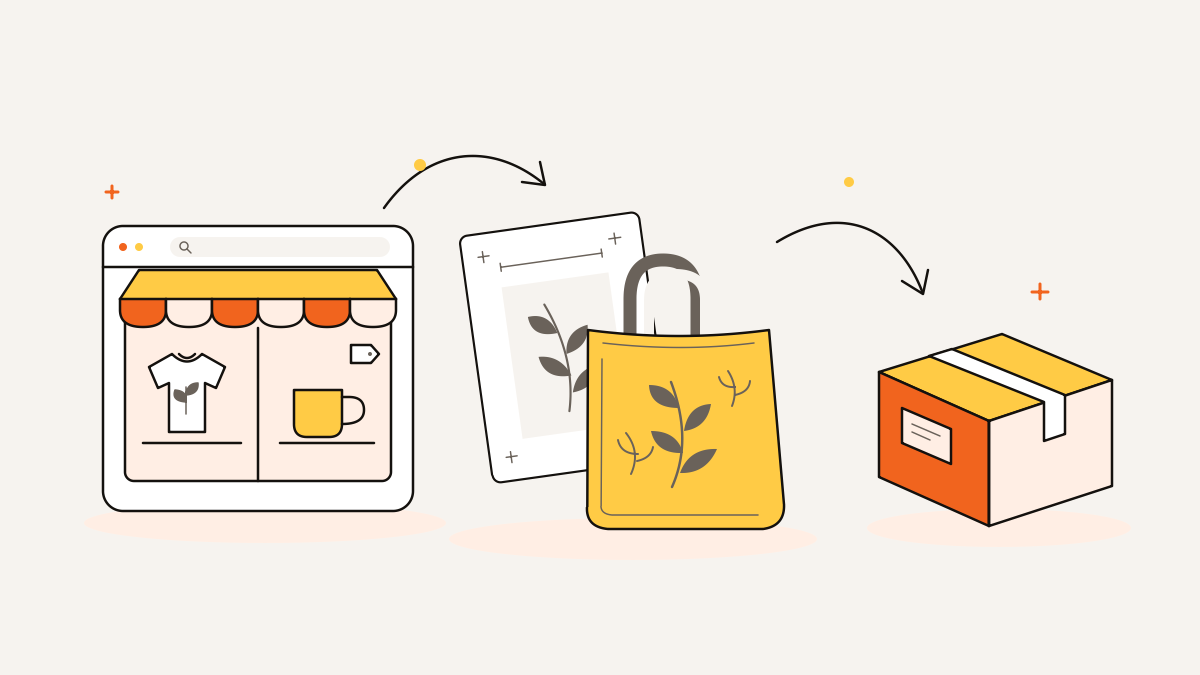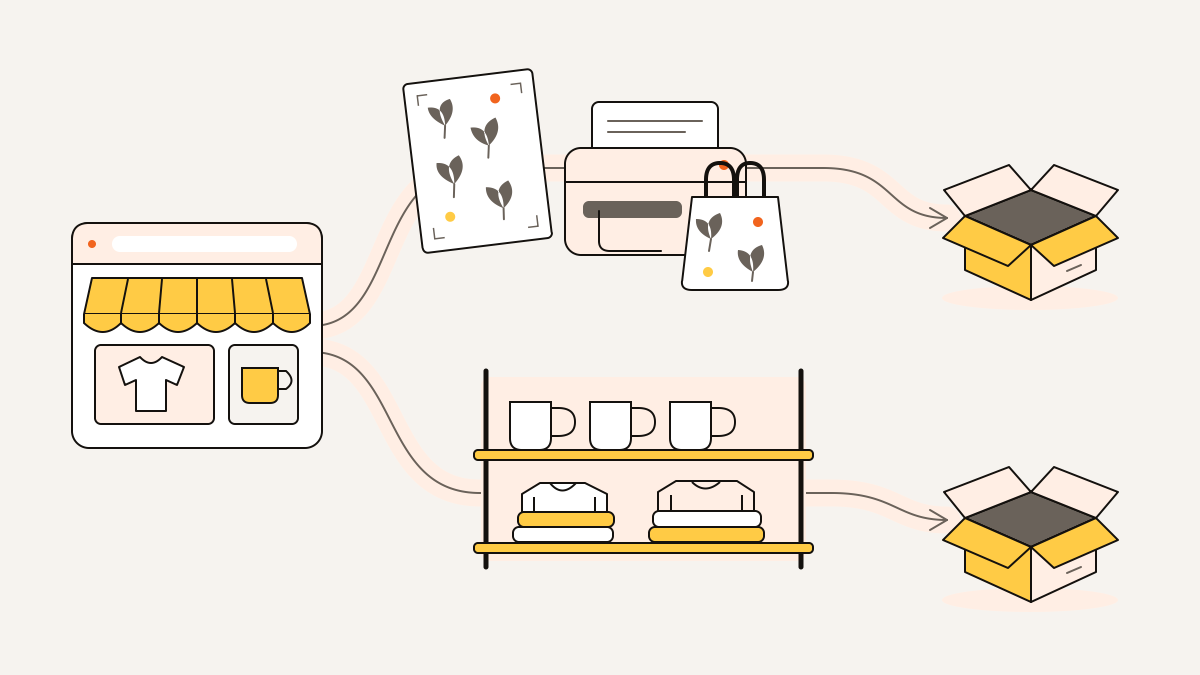
For print on demand niches in 2026, build your automated workflow around products that fit templates. These include school gifts, wedding gifts, personalized pet products, or work-from-anywhere accessories. Let software handle repeat file preparation and send orders to the right producer. You should still check demand, approve designs, and handle production problems that need special attention.
Start by sorting the details buyers can change into fixed-template fields and requests that need your review. Follow the personalized school-gift mug below from product research through shipping. Then use those steps to plan a small trial run.
What you can automate between an Etsy order and production
Connected suppliers can produce and ship orders while you manage listings and problems that need attention. The software connection sends order details to production. Personalization software uses a design template to turn customer choices into artwork.
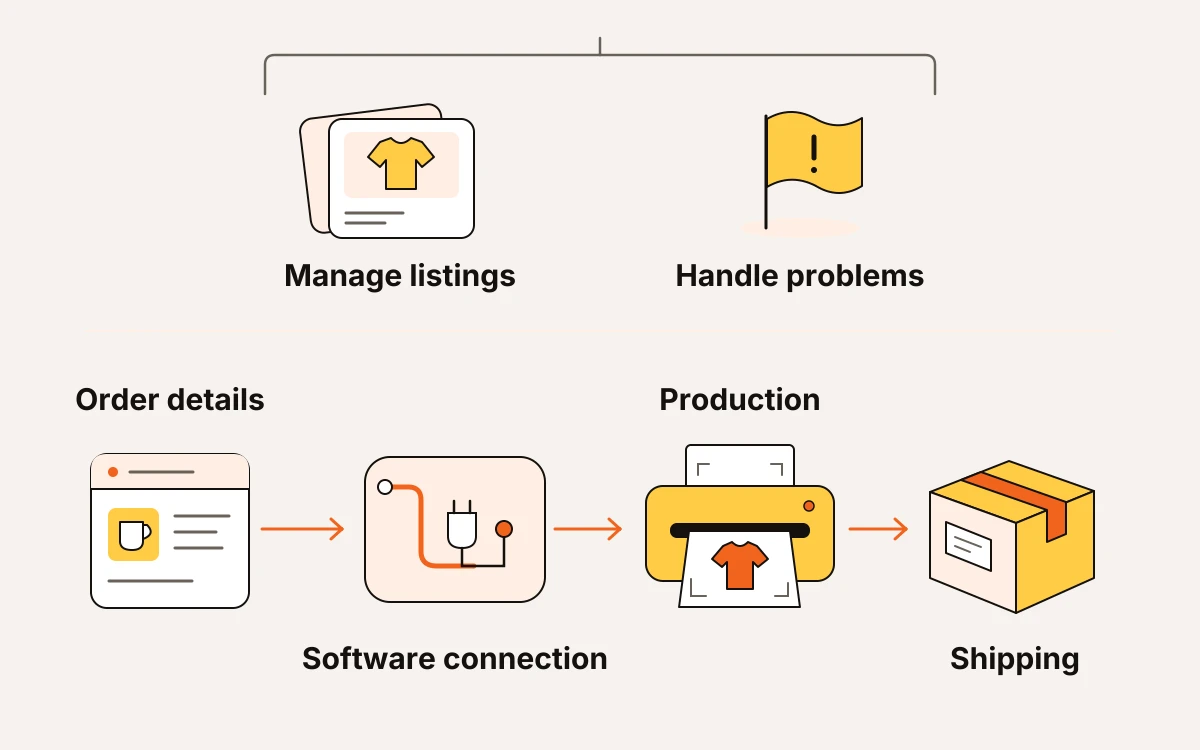
Each step needs its own setup and checks:
- Etsy hosts your listings and collects orders with buyers’ personalization details.
- Personalization software applies those details to your design and checks them against rules you set.
- The supplier integration transfers orders and artwork. It can return tracking to Etsy if the connection supports it.
- The supplier prints and ships the products.
- You publish listings, approve templates, review exceptions, and handle delays or failed transfers.
The supplier setup guide covers connection instructions.
Start with niches that fit a repeatable template
Start with school or wedding gifts if you can handle adding names to a fixed design. If you want fewer checks on each order, try work-from-anywhere collections with ready-made designs instead.
- School or wedding gifts: templates with names buyers can change. These suit buyers who want a personal gift without commissioning a new design.
- Work-from-anywhere mugs and laptop sleeves: collections of ready-made designs. Group finished designs around remote-work routines or travel themes. Without custom text, you can approve each design before listing it. You won’t need to rebuild it after every purchase. Mugs and sleeves need separate layouts so the artwork fits each product.
- Pet portraits: only with photo review. Choose this niche if you have time to check photos buyers send you. You’ll also need to approve the finished artwork before production. Blurry photos, awkward crops, and portrait changes add work you avoid with a fixed-name template. Buyers need clear steps for sending photos. Don’t assume Etsy has a built-in way for them to upload photos and preview the result.
Before building the collection, check for signs that people are buying. Scan best sellers for reviews from the last 7–14 days. Then look for a steady flow of recent reviews across multiple sellers. Impressions, or the number of times a listing appears, show attention. Recent reviews help you spot products people are actually buying.
The existing niche roundup has broader product ideas. The seasonal guide can help you decide when to launch. For today’s shortlist, note which fields buyers can edit and whether each order needs approval. Include what recent reviews tell you about purchases. Choose the niche whose order checks fit the time you actually have.
Build one personalized school-gift mug from research to fulfillment
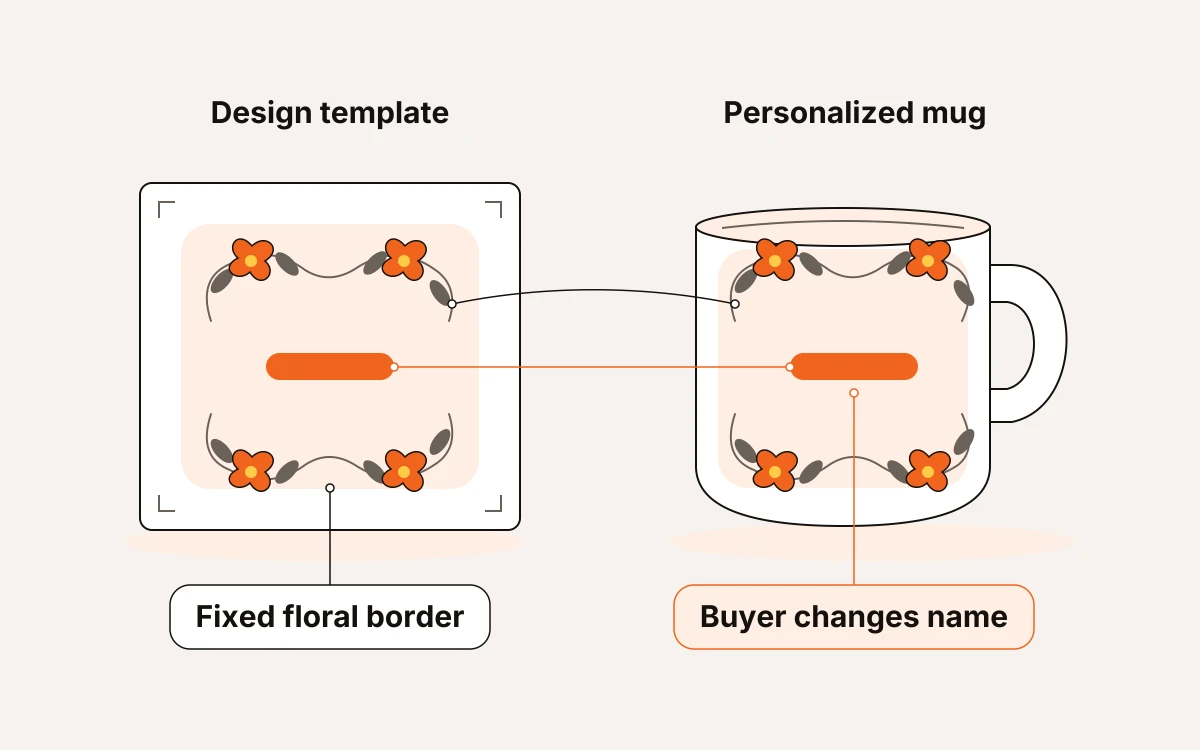
The school-gift mug has a floral border and the teacher’s name. Buyers change only the name, so each order can follow the same production steps.
- Compare “teacher name mug,” “personalized teacher mug,” and “teacher thank you mug” with eMarketInsight’s free Etsy keyword research tool. Look at buyer demand, competing listings, prices, and top sellers. Estimated Etsy demand comes from how listings are viewed, favorited, and bought. Etsy publishes no search volume, or count of searches. Choose the phrase that fits your product and shows buying activity, not just attention.
- Build the template, your reusable design layout, before the listing. Fix the mug size, floral border, font, name placement, and area to be printed. Follow the supplier’s requirements for edge spacing and artwork extending beyond the trim edge. Test short and long names, including supported accents and punctuation. Set a text-fit rule that keeps names readable within the print area.
- Prepare your Etsy listing draft with the title Personalized Teacher Name Mug, Floral Classroom Thank You Gift. State exactly what buyers can change. Ask for the teacher’s name exactly as it should appear, including any title. Before publishing, check that the personalization instructions are clear. Set processing time, the time you need before shipping, to cover both artwork review and production.
- Configure personalization software to require the teacher’s name and preserve the buyer’s exact spelling. It must enforce supported characters and text fit before releasing an order. Approve the template’s exported files against the supplier’s print requirements. Hold missing fields, unsupported characters, and names that do not fit for your review. Requests for changed artwork, such as adding a school crest, also need review.
- Test the integration with the finished template before enabling automatic submission. Each mug size and color must map to the correct supplier product. Confirm that the supplier receives the personalized file for that order. Fixed-name orders can then proceed automatically only if the software enforces required fields, supported characters, text fit, and correct product mapping. Failed checks must stop submission and hold the order for review. If your software cannot enforce these rules, keep manual approval. Photo-based portraits still need manual approval of the photo and finished artwork.
For this mug, your order record should show the buyer’s exact text and artwork version. It should also show whether the artwork is approved and whether it’s been sent to the supplier. That keeps the handoff clear without sorting through a folder full of nearly identical files.
Stop automation from multiplying expensive mistakes
Before adding listings, check file quality, product matching, cost per order, and provider reliability. Automation repeats mistakes when passing files and orders along just as efficiently as it repeats good work.
- Check resolution, or image sharpness, at the final print size. An exported file can lose effective resolution (DPI, or dots per inch) during transfer to Printify. Inspect that file at the print size your supplier requires. The design preview alone won’t tell you enough. If the school-gift mug’s text or edges look blurry, hold the order. The photo guide covers the separate listing-image checks.
- Match every mockup, or product preview, to the actual product. Too many color choices invite wrong selections, mismatched previews, and requests for help. For the school-gift mug, each color choice needs to show the matching mug. It also needs to send the order to that exact supplier product. Remove any choices you haven’t checked.
- Track the work behind each order. Your cost-per-order record needs to include design time, production, and customer support. If name corrections and approval messages keep eating up time, improve the fields where buyers enter personalization details. Do that before adding more products. The POD (print-on-demand) pricing and Etsy fees guides help you review what each sale leaves.
- Check the specific provider before sending more orders their way. Review their print quality, production speed, and handling of damaged or incorrect orders. Use these checks to decide whether to increase order volume. Use the personalization rules in the mug example to decide which orders can bypass manual approval.
Run a small workflow pilot this week
Test the steps on one existing listing before changing the rest of your shop. A small test helps you spot and fix problems as order details move between steps.
- [ ] Choose one listing for the test. The school-gift mug example above works if you already sell something similar. Keep the listing’s current options unchanged during the test.
- [ ] Run a valid sample order through the complete handoff, from Etsy entry to supplier receipt. Also test failed checks and a request for changed artwork. Confirm that valid orders follow your chosen approval path and exceptions stop before production.
- [ ] Keep a log of problems: what failed, where the order stopped, and who needs to fix it. That might be you, your supplier, or software support. Each problem needs a next action.
- [ ] Run the test again after fixes. Move to another listing only when details pass correctly from each step to the next. That includes confirming your supplier received the approved file and correct product details.